File widgets collapse into a compact capsule: collected files stay on the desktop and expand only when needed. Multiple capsules can join a capsule bar that moves and sorts as one.
- Choose "Collapse to capsule" from the title bar or appearance settings.
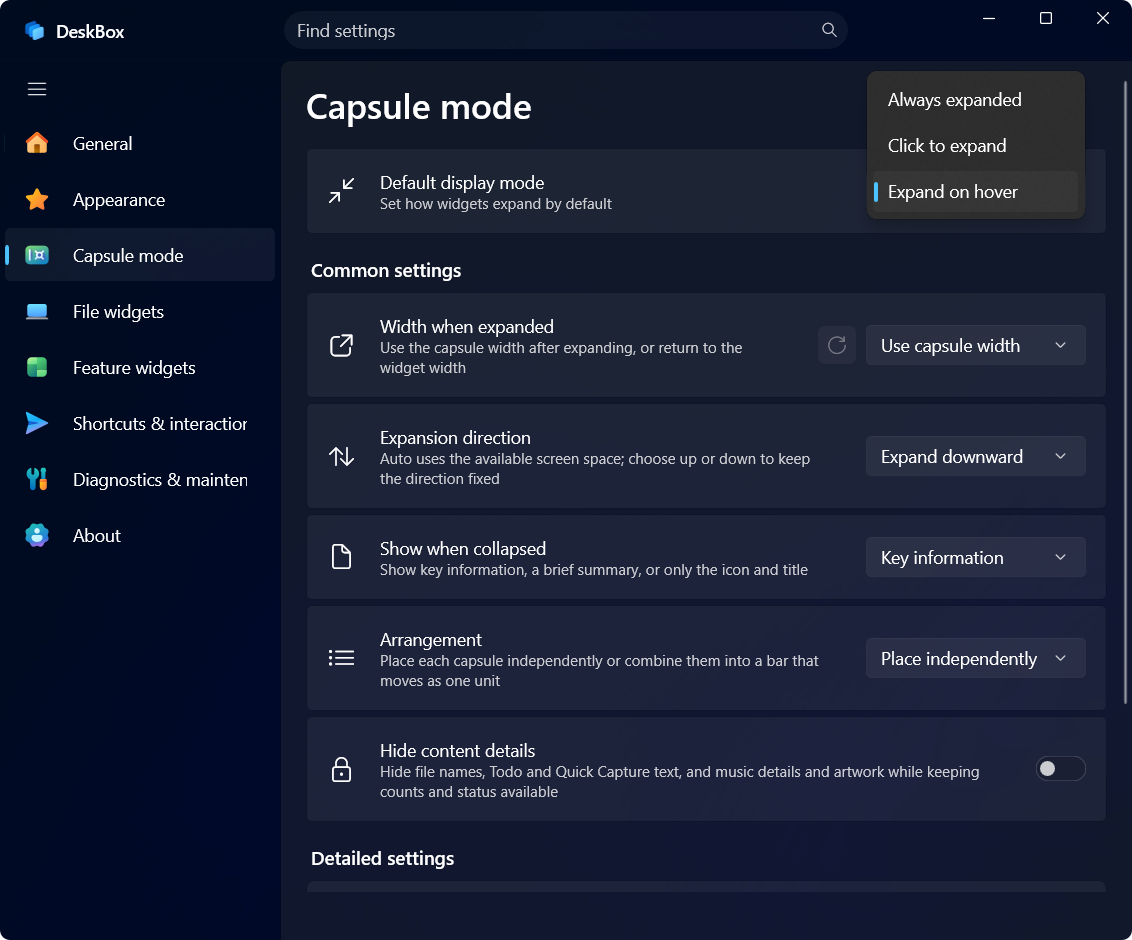
- Pick click-to-expand or hover-to-expand, then choose the expansion direction.
- Join several capsules into a capsule bar that moves and sorts as one.
设置路径SettingsAppearanceCapsule mode
Related settings
Allow widgets to collapse
The capsule mode master switch.
Default display mode
Whether new widgets start expanded or collapsed.
Capsule style / Show when collapsed
Collapsed appearance and whether to show icon, title or a key-info summary.
Hide content details
Hide file names and details while collapsed — a display control, not encryption.
Expansion direction / Combined bar position / Arrangement / Capsule spacing
Expansion direction (up/down), capsule bar placement, arrangement and spacing.
Hover response / Hover expand delay / Pointer-leave collapse delay
Hover-to-expand behavior and its delay times.
Expand and collapse animation / Transition duration
Capsule animation effect and speed.
Widgets with individual settings / Make every widget follow global settings
After overriding a widget, reset everything to follow the global defaults here.
More in this category
How do I collapse and expand widgets?
Didn't find an answer? Ask or suggest on the feedback wall