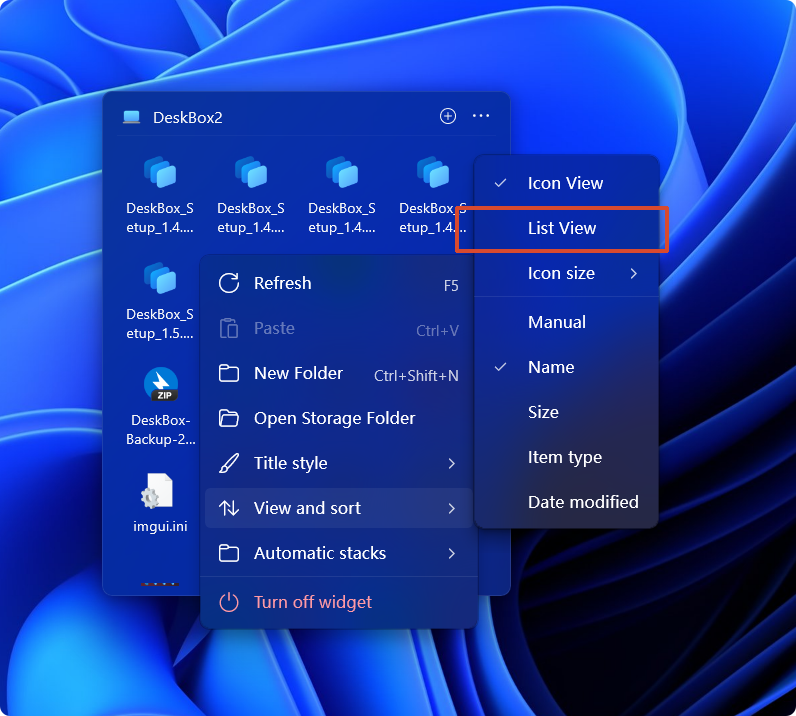
Every file widget can independently switch between icon and list views, with per-widget sorting and display density.
Filename width, extension visibility, list detail columns and shortcut arrows are unified in Settings → File widgets; custom icons render at 256 px.
Related settings
Hide file names or show them on one or two lines in icon view.
Adjust the width available to file names.
Show size, time, or folder item count in list view.
Show extensions such as .txt and .png in item names.
Keep shortcut names clean when file extensions are shown.
Only affects icons shown inside DeskBox widgets.
Turn on to hide thumbnails and use Windows file icons.
Show the full path when hovering files.
Choose which buttons appear in the top-right corner; multiple can be enabled.
More in this category
Didn't find an answer? Ask or suggest on the feedback wall