Groups put multiple file widgets in one spot — for areas like "Project A", "Project B" and "Downloading" that should keep their place but never show at once.
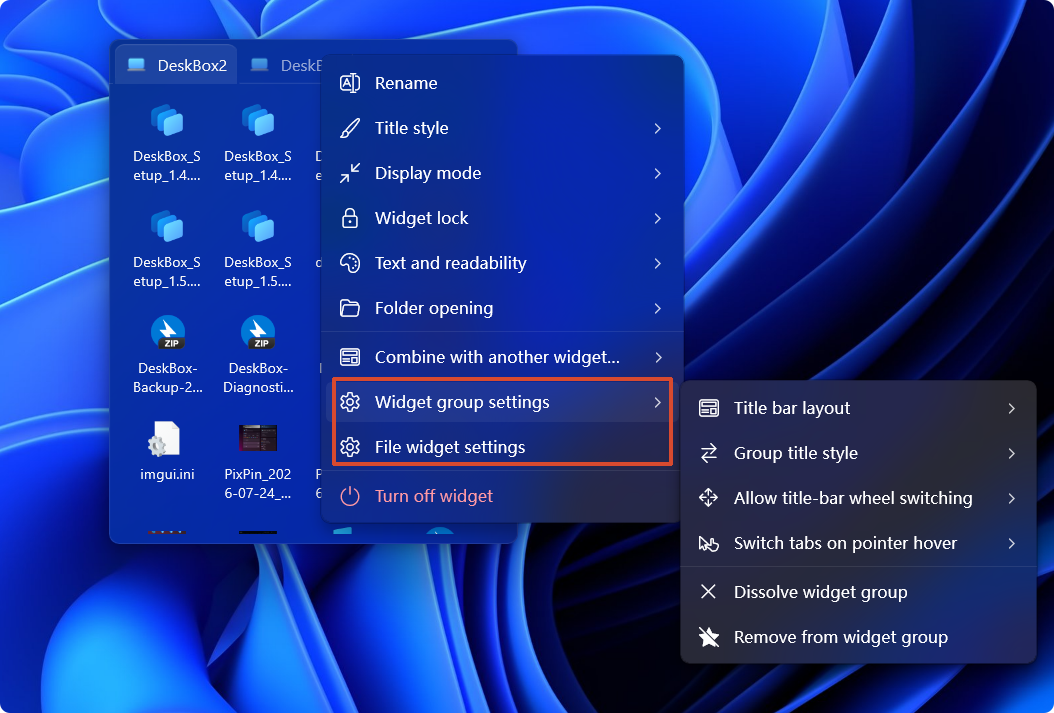
- Drag one widget's title bar onto another's to form a group; merging also works from the menu.
- Scroll the title wheel or press Ctrl+Tab to cycle group members.
- Hold the title to drag a member out; dissolving a group never touches the underlying folders.
设置路径SettingsFile widgetsWidget groups
Related settings
Existing widget groups
Expand to reorder members or customize a single group.
Display mode
Keep this group expanded, expand it on click, or expand it on hover.
Scroll to switch
Scroll over a group title bar to switch one widget at a time.
Switch tabs on pointer hover
When widgets are side by side, pause over a title to switch.
Title bar layout / Title bar height
Groups keep a visible title bar so you can switch members; height and layout are adjustable.
Group name display
Controls how the group name is shown.
More in this category
Didn't find an answer? Ask or suggest on the feedback wall